Google Calendar Permissions: Fix Small Business Booking Access
Learn how to change Google Calendar permissions, choose among five access roles, troubleshoot Workspace limits, and keep booking integrations working.

How many customers are slipping away before you can answer?
Answer 4 quick questions and get a simple missed-call estimate for your business.
Answer with one tap. Contact details come after your result.
Here is the estimate.
Thanks. Your result was received.
Google Calendar uses five access roles, from see-only free/busy to full owner control, and you change them from a computer through Settings and sharing. If a collaborator says they can't edit or view an event, the fix usually comes down to two things: they weren't granted the right role, or a Workspace admin policy is limiting what you can share. Start by opening your calendar's settings and checking exactly what permission that person currently has.
TL;DR:
- Sharing controls are available only on desktop, and recipients must accept the emailed invitation or find the calendar through Add other calendars.
- The make changes role lets collaborators edit events, but private event details remain hidden; managing sharing requires the higher make changes and manage sharing role.
- Work or school administrators can block external sharing or limit outsiders to availability only, overriding individual permissions set by calendar owners.
- Booking integrations need event editing access, but request only the calendar.events scope when sufficient, test on a secondary account, and verify ownership.
- Review access quarterly, remove former workers and unused integrations, and inspect Google Group membership because group additions can grant calendar access without a separate invitation.
Table of Contents
- Permission levels explained: what each access level allows
- How to share or change calendar permissions on desktop
- Troubleshooting common permission problems
- Admin controls and Workspace sharing policies that override user settings
- Best practices for safe calendar sharing
- How calendar permissions affect appointment booking and integrations
- Use cases for permission levels in local service businesses
- How to audit and review calendar sharing settings regularly
- Recommended permission workflow for small teams
- RingPort: automated bookings with the right calendar integration
- FAQ
- Sources
Permission levels explained: what each access level allows
Before you share anything, it helps to know exactly what you're handing over. Google Calendar's sharing menu offers five standard permission levels, and each one controls a different slice of what a collaborator can see or do, according to Google's developer documentation.
- See only free/busy (hide details): shows blocks of busy time with no event names, locations, or guests.
- See all event details: lets someone view full event information but not make any changes.
- Make changes to events: allows editing and adding events, though private events stay restricted.
- Make changes and manage sharing: adds the ability to invite or remove other collaborators.
- See only free/busy sits at the bottom of the trust ladder, while the top role grants nearly full control, including granting access to others, per Google's sharing documentation.
For developers and anyone connecting booking software, these roles map to API-level permissions: freeBusyReader, reader, writerWithoutPrivateAccess, writer, and owner. One detail worth remembering: a calendar has a single data owner, even though several accounts can hold the owner role, which matters if you ever need to transfer or recover calendar data. Private events add another layer. Even someone with a "make changes" role typically can't see the details of events marked private, which keeps sensitive appointments protected without requiring a lower permission tier for that person.
How to share or change calendar permissions on desktop
Changing who can see or edit your calendar takes just a few clicks, but you need a computer to do it. According to Google Calendar Help, sharing settings aren't available in the mobile app, so save this task for your laptop or desktop.
- Open Google Calendar on a computer and find My calendars on the left side.
- Hover over the calendar you want to share and click the three-dot menu, then select Settings and sharing.
- Scroll to Share with specific people or groups.
- Click Add people and groups, then enter an email address or a Google group.
- Choose the permission level from the drop-down menu next to their name.
- Click Send to deliver the invitation.
The recipient gets an emailed link and has to click it to add the calendar to their own account. Skipping that step is one of the most common reasons a shared calendar never shows up for the other person.
Since this entire process lives on desktop, don't waste time hunting for sharing controls in the Android or iOS app. Set permissions on a computer first, then let your team access the calendar from whatever device they prefer afterward.
Pro Tip: Share with a colleague or a secondary test account first, confirm the permission behaves as expected, and only then roll it out to your full team.
Troubleshooting common permission problems
Most sharing headaches trace back to a handful of predictable causes. Working through them in order usually gets you to a fix faster than guessing.
- "You don't have permission" on an invite: check which calendar the event actually lives on, then confirm you have at least "see event details" or "make changes" for that specific calendar.
- Permission options are grayed out: this often signals a Workspace admin policy limiting sharing; reach out to your administrator rather than troubleshooting further on your own.
- Recipient can't find the shared calendar: they need to click the emailed invitation link, or go to Add other calendars and search for it directly rather than assuming it will appear automatically.
- Mismatched email accounts: verify the address you shared with matches the Google account the recipient is actually signed into.
- Mobile app limitations: sharing and delegation controls aren't available there, so switch to desktop or have the calendar owner grant permission from their own computer.
Working through this list in order resolves the overwhelming majority of sharing complaints without ever needing to touch admin settings.
Admin controls and Workspace sharing policies that override user settings
If you use Google Calendar through work or school, your organization's admin may have sharing rules that take precedence over anything you set personally. According to Google Workspace's learning center, administrators can limit external sharing entirely or force every calendar in the domain to show only free/busy information to outsiders.
A few things to know about how this works:
- Domain-wide policies can override individual sharing choices, even if you've personally granted someone a higher role.
- Admins and super administrators retain visibility into calendars across the organization for troubleshooting purposes, regardless of individual sharing settings.
- If you're blocked from sharing the way you need to, your best options are contacting your admin directly, requesting a policy review for your team, or using internal group-based sharing as a workaround while that conversation happens.
Best practices for safe calendar sharing
A little planning upfront saves you from privacy headaches later. The goal is giving people exactly what they need, no more.
- Use free/busy only for anyone outside your immediate team, and reserve full event details for close colleagues or assistants who need context.
- Share with Google Groups instead of individuals when a whole team needs access, and set up a separate shared calendar for resources like conference rooms or equipment.
- Label genuinely private events as private and keep external recipients on the lowest permission that still lets them do their job.
Pro Tip: Build a test calendar and a dedicated integration account before connecting any booking tool, so you can confirm it behaves correctly before it touches your real schedule.
How calendar permissions affect appointment booking and integrations
Appointment tools and AI receptionists need at least "make changes" permission to place events reliably on your calendar, and some setups call for "make changes and manage sharing" if the integration also manages who else can see the calendar. Before trusting any tool with your schedule, run a few checks: confirm the OAuth scopes it requests match what it actually needs, verify which account owns the calendar, and test that a new event is visible from a separate recipient account.
Google's Calendar API documentation recommends requesting the narrowest scope that gets the job done, such as calendar.events for booking software rather than full account access.
A simple rollout checklist:
- Grant the integration permission on a test account first.
- Book a sample appointment and confirm it appears correctly.
- Check that notifications and visibility work as expected before connecting your live calendar.
This kind of verification matters more for businesses relying on calendar integration for scheduling, where a missed permission setting can mean a booking silently fails to appear.
Use cases for permission levels in local service businesses
A plumbing company, a salon, and a property management office don't need identical sharing setups, even though they're all solving the same basic problem: keeping a schedule accurate without exposing more information than necessary.
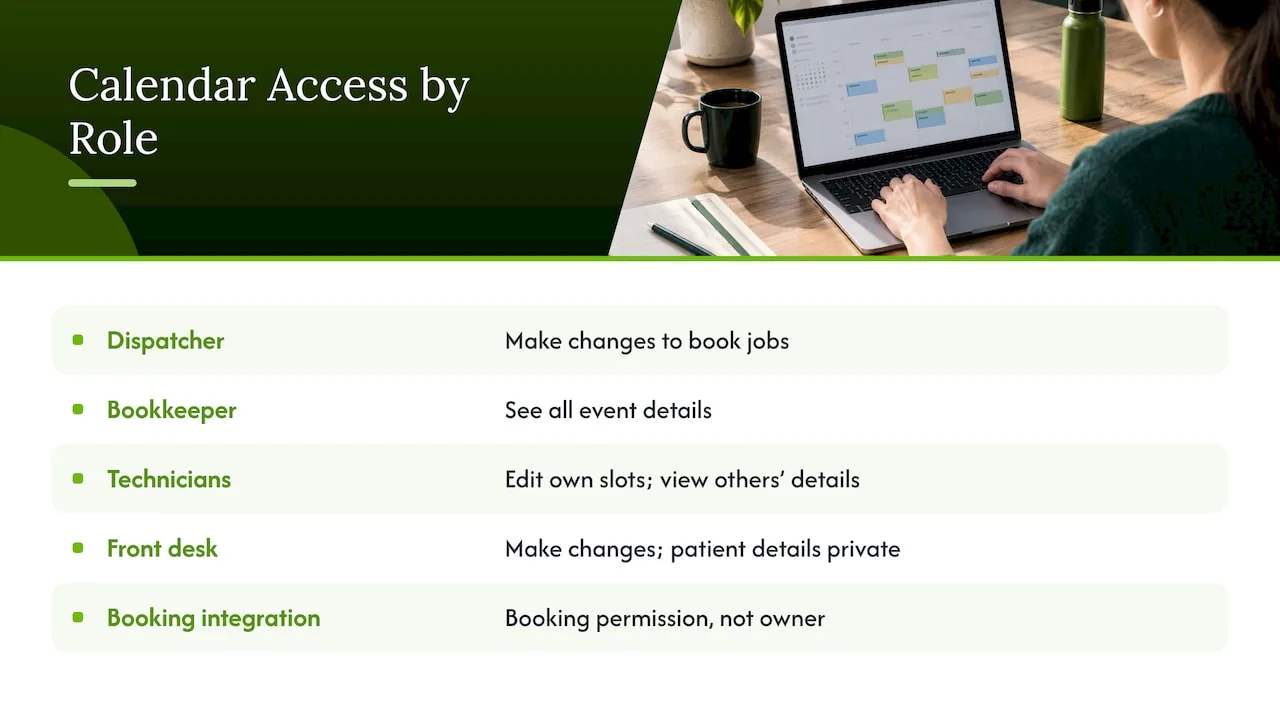
A solo contractor who hires a part-time dispatcher typically wants that person on "make changes" so they can book jobs directly, while a bookkeeper reviewing the week's workload only needs "see all event details." A multi-technician team benefits from a shared team calendar with each technician given "make changes" on their own slots and "see event details" on everyone else's, so nobody double-books a truck or a tool.
Medical and dental offices often need tighter control: front-desk staff get "make changes," but the calendar itself should mark patient names and details as private so anyone with broader access outside the front office only sees free/busy blocks.
Property managers juggling multiple units sometimes connect a booking workflow to a shared calendar, in which case the integration account should hold exactly the permission it needs for booking, rather than a blanket owner role that could let it alter sharing settings it has no business touching. Matching the permission to the actual job, rather than defaulting to the highest available role, keeps these smaller operations running without unnecessary exposure.
How to audit and review calendar sharing settings regularly
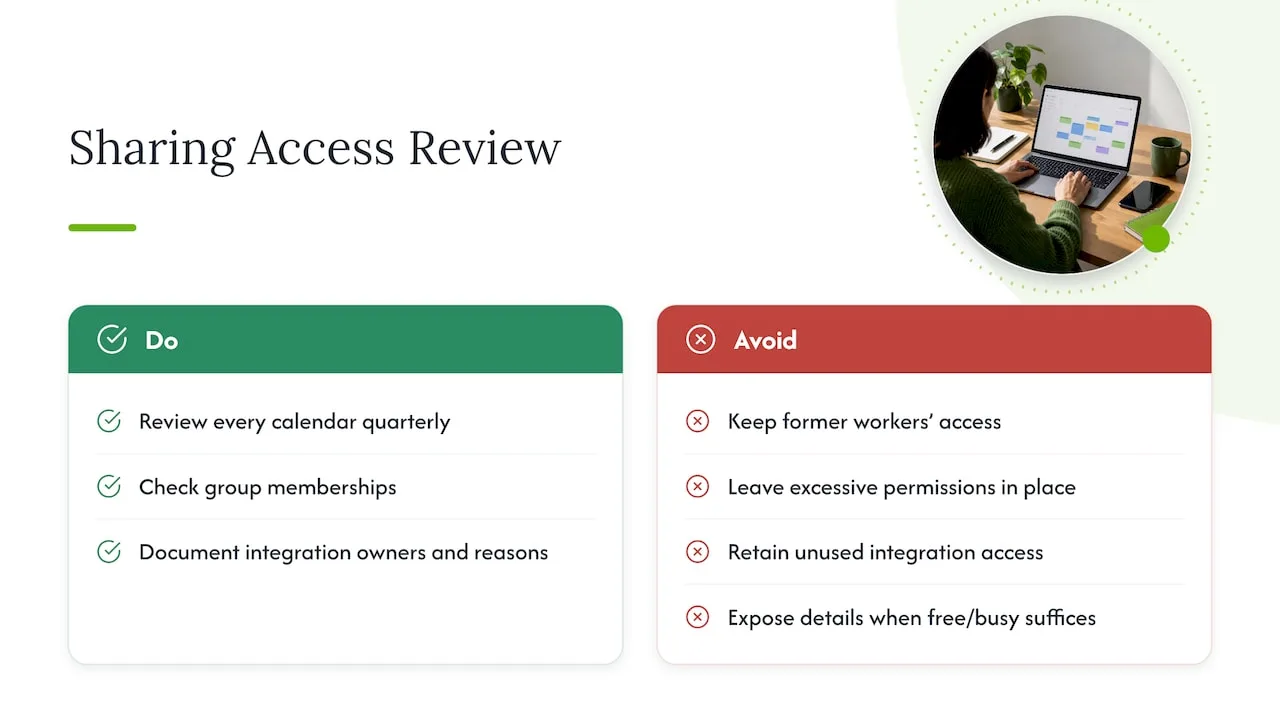
Permissions tend to drift over time. A former employee's access doesn't always get revoked, and a contractor brought on for one project can end up with standing edit rights long after the work wraps up. Setting a recurring reminder, quarterly works well for most small teams, to open Settings and sharing on every calendar and review the list of people with access is a simple habit that closes this gap.
When you review, look for a few specific things: anyone who no longer works with you, any permission level higher than what someone's current role requires, and any integration account you no longer use. Revoke access for all three. It's also worth checking whether any calendar has been set to "see all event details" for a wide group when free/busy would have been sufficient.
For teams using group-based sharing, audit the group membership itself rather than just the calendar's share list, since adding someone to a Google Group can quietly grant them calendar access without a separate invitation ever being sent. Documenting who owns each integration account, and why it holds the permission it has, makes this recurring review faster each time and reduces the chance that an old access grant goes unnoticed until it causes a problem.
Recommended permission workflow for small teams
Grant "see event details" as your default for routine visibility, and reserve "make changes" for people and integration accounts you genuinely trust with your schedule. Test every new integration on a secondary account first, and keep a simple note of which account owns your automated bookings so troubleshooting never starts from scratch.
— Serhii
RingPort: automated bookings with the right calendar integration
If you're a local service business tired of juggling calendar invites while trying to answer phones, an AI receptionist can book appointments directly onto your calendar around the clock without you touching a settings menu mid-call.
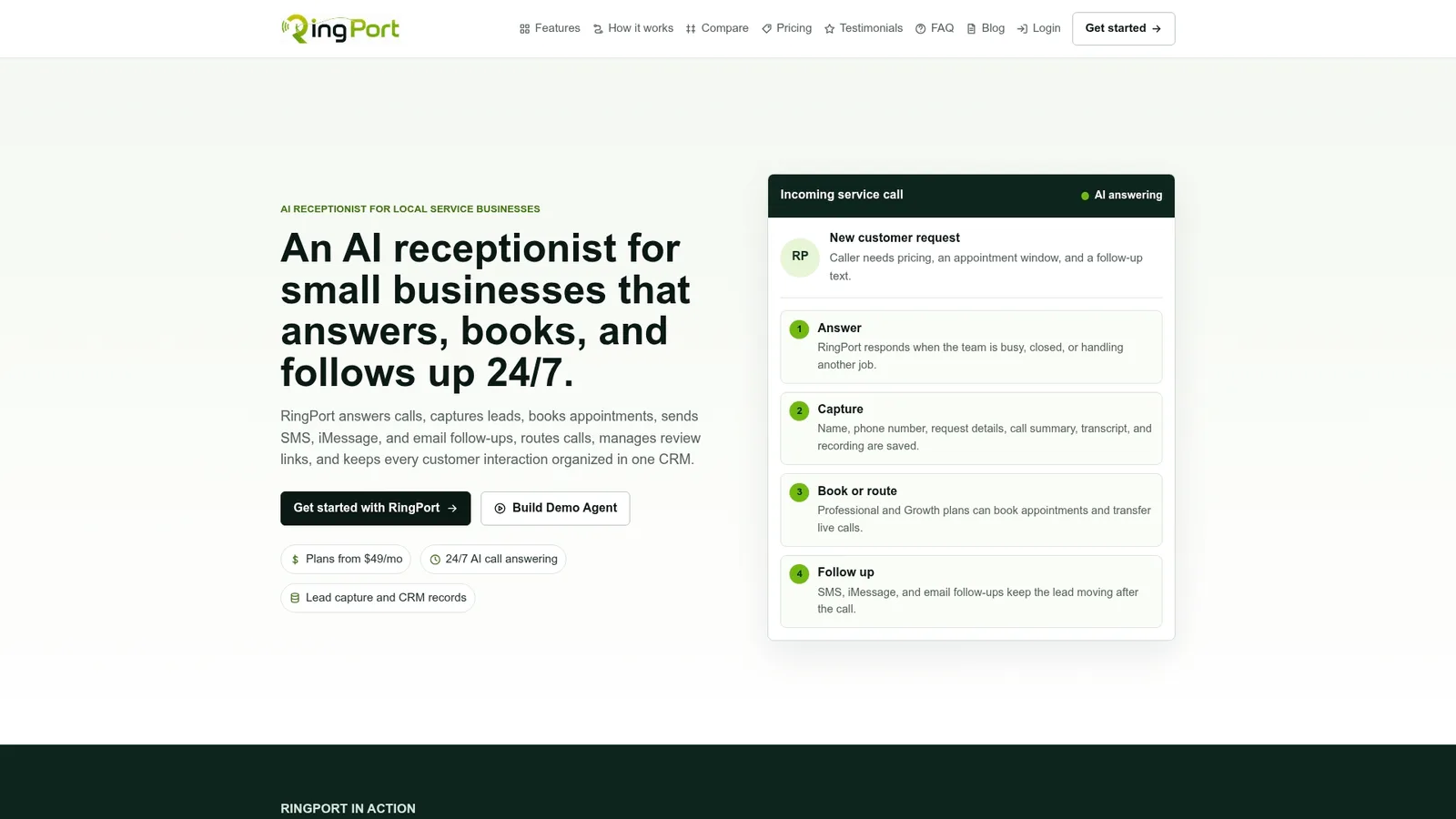
Connecting a booking tool like this to your calendar typically requires granting "make changes" permission to the integration account, which lets it create and update appointments without giving it control over your sharing settings, as explained in Email and Mailboxes for AI Scheduling Agents. For a closer look at how automated booking fits into daily call handling, our Fast Agent product page walks through what a live setup looks like.
FAQ
How do I edit calendar permissions in Google Calendar?
Open Google Calendar on a computer, hover over the calendar under My calendars, and click the three-dot menu to find Settings and sharing. From there, locate the person's name under "Share with specific people" and change their permission using the drop-down menu beside it.
How do I create a shared Google Calendar on Android?
You can view and accept an already-shared calendar on Android, but creating the share itself and setting permissions must happen on a computer, according to Google Calendar Help. Once a calendar is shared from desktop, it syncs automatically to the Android app.
How do I manage a shared calendar once it's set up?
Managing a shared calendar mostly means periodically reviewing who has access and at what level, removing anyone who no longer needs it, and adjusting permissions as people's roles change. Use the same Settings and sharing menu you used to create the share in the first place.
How do I update my Google Calendar after sharing it?
Updating a shared calendar works the same as updating any calendar: add, edit, or delete events directly, and anyone with at least "make changes" permission can do the same. Changes sync automatically for every collaborator, though people with "see event details" only can view your updates, not make their own.
What should I check before granting edit access to an integration?
Confirm the integration requests only the OAuth scopes it needs, such as calendar.events rather than full account access, and verify which account actually owns the calendar before connecting anything. Testing on a secondary calendar first, as outlined in Google's API authorization docs, catches most configuration problems before they affect your live schedule.
Sources
- Calendar sharing | Google Calendar | Google for Developers
- Share your calendar - Computer - Google Calendar Help