Capture Phone Leads: Reliable Calendar Integration for SMBs
Small business how to: seven step calendar integration covering OAuth, free and busy checks, webhooks, UTC handling, and phone lead capture.

How many customers are slipping away before you can answer?
Answer 4 quick questions and get a simple missed-call estimate for your business.
Answer with one tap. Contact details come after your result.
Here is the estimate.
Thanks. Your result was received.
Choose the simplest integration that reliably enforces free and busy checks. If you manage one calendar and want fast setup, use a native booking page. If you want a branded booking experience on your own site, use an embedded scheduling widget. If you need to merge multiple calendars or conferencing providers, use a unified API.
TL;DR:
- Native booking pages are quickest to set up and cost nothing if using Google Calendar or Microsoft 365, but they offer limited branding and multi-calendar support.
- Embedded widgets provide a more branded experience but may require a provider account for advanced features like payments and reminders.
- Unified APIs are ideal for teams managing multiple calendars and custom booking rules, requiring more development but offering greater flexibility.
- Ensuring OAuth token refreshes automatically and verifying real-time free and busy checks prevent common booking issues and double bookings.
- Integrating phone calls into scheduling, as RingPort does, captures leads early and guarantees real-time calendar updates, especially valuable for local service businesses.
Table of Contents
- How calendar scheduling integrations actually work
- Native pages, embedded widgets, or a unified API: which fits?
- Setting up your booking flow step by step
- Best practices that keep scheduling reliable
- A small business workflow: phone calls to confirmed appointments
- Picking the route that fits your resources
- Your launch checklist before going live
- What actually matters when you set this up
- How RingPort connects phone calls to a booked calendar
- Sources
- FAQ
How calendar scheduling integrations actually work
A calendar integration is really a handful of parts working together, and once you see them laid out, the whole system makes a lot more sense.
Here is what you are connecting:
- Calendar accounts: the Google Calendar, Outlook, or Apple Calendar your business already runs on.
- Booking page or widget: the public-facing page or embed where clients pick a time.
- Free and busy endpoint: the check that confirms a time slot is actually open.
- Event creation: the step that writes the confirmed appointment back to your calendar.
- Conferencing: an optional video link attached automatically to the booked event.
- Notifications: the confirmation and reminder messages sent to you and the client.
- Webhooks: real-time alerts when something changes, like a cancellation.
Most of these systems rely on OAuth 2.0 to connect securely to your calendar without ever handling your password directly. You grant permission once, the service receives an access token, and that token is refreshed automatically in the background to keep the connection alive. The Google Calendar API documentation notes that reliable implementations depend on this refresh logic running quietly behind the scenes, since a stale token is one of the most common reasons bookings suddenly stop syncing.
The basic data flow looks like this: your calendar connects to the scheduling tool, the tool checks free and busy status before showing any times, a client proposes a time, the system creates the event on your calendar, and a webhook fires to update everyone the moment anything changes. Once you understand that loop, you can judge any scheduling tool by how well it handles each step.
Native pages, embedded widgets, or a unified API: which fits?
Three approaches cover almost every small-business situation, and picking the right one mostly comes down to how many calendars you run and how much control you want over the booking experience.
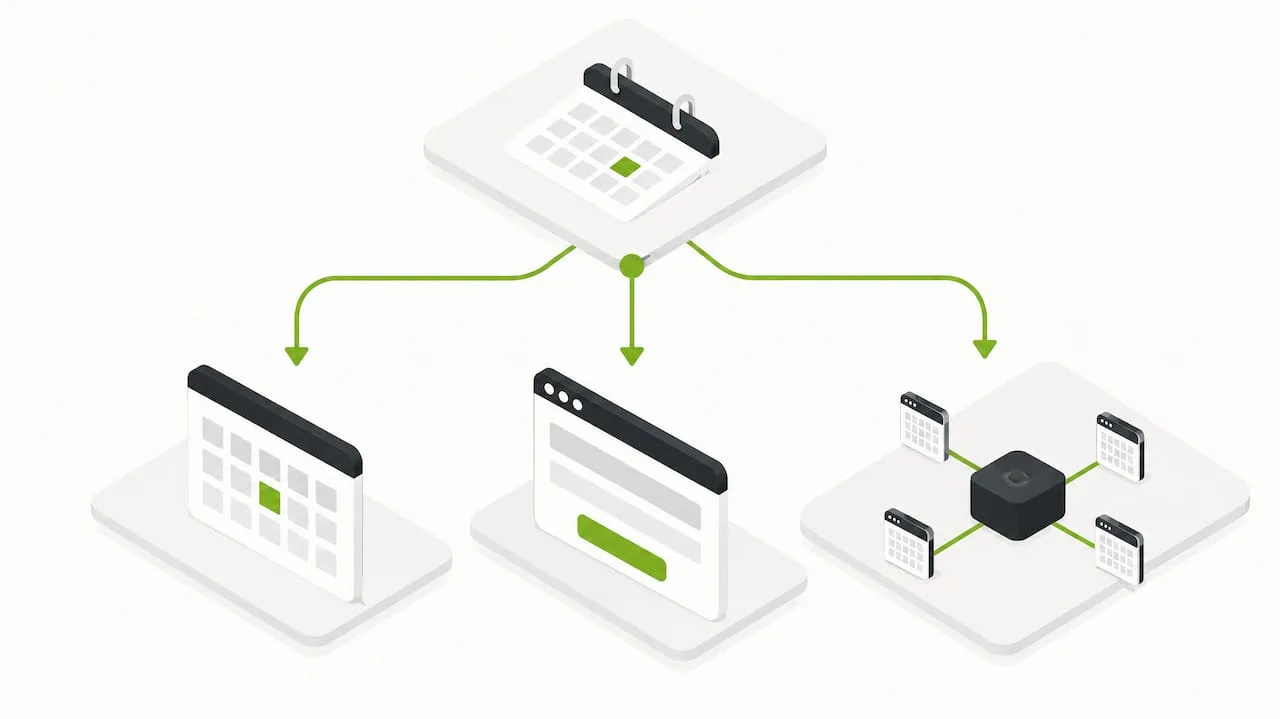
Native appointment pages are built directly into your calendar provider. Google Calendar's own appointment schedules feature lets you block out available times and share a link clients use to book straight into your calendar, with no separate account or software needed. It is the fastest path to a working booking link and usually costs nothing extra if you already use Google Calendar or Microsoft 365. The trade-off is limited branding and little support for pulling availability from more than one calendar at once.
Embedded widgets and booking links sit on your own website, so they look like part of your brand rather than a borrowed page. They tend to offer more polish, like custom colors and forms, but you may still need an account with the widget provider to unlock features such as payment collection or automated reminders.
Unified APIs solve a different problem entirely. According to Unified, a unified API standardizes OAuth, free and busy lookups, and event creation across more than a dozen calendar providers, so you write one integration instead of rebuilding the same logic for Google, Outlook, and others separately. This approach makes the most sense for teams juggling several staff calendars or multiple conferencing tools, and it is also the route to take if your booking logic needs custom rules a template app cannot handle.
Pro Tip: If you are not sure which approach fits, start with the native booking page. You can always graduate to a widget or API later once you know exactly what is missing.
A general rule worth keeping in mind: avoid a custom build unless you already have an engineer on staff or a clear reason a template tool cannot meet. Bringing in outside development help only pays off once your scheduling needs involve multiple calendars, custom availability logic, or a product you are building for other people to use.
Setting up your booking flow step by step
Getting from zero to a working booking page takes less time than most people expect, as long as you move through the steps in order.
- Pick your approach and create any accounts you need, whether that is enabling Google's appointment schedules, signing up for a widget provider, or registering for API access.
- Connect your calendar through OAuth and confirm the permissions include both read and write access, since free and busy checks need read access and event creation needs write access.
- Define your availability rules: set meeting lengths, buffer time between appointments, and a minimum notice window so people cannot book you five minutes from now.
- Check free and busy status before offering any slot, so the system never shows a time that is already taken.
- Create the event with a conferencing link attached, if video calls are part of your service.
- Set up reminders and confirmations, then connect a webhook endpoint so cancellations and reschedules update your calendar immediately rather than sitting stale.
- Test the entire flow end to end, including the edge cases that usually break first.
Those edge cases deserve their own attention before you go live:
- Two people trying to book the same slot within seconds of each other.
- A token expiring mid-session and the system failing to refresh it.
- A client in a different time zone seeing the wrong available hours.
Running through each of these once, deliberately, before launch saves you from discovering them the hard way during a busy week.
Best practices that keep scheduling reliable
Most scheduling problems trace back to a small number of root causes, and fixing them up front avoids most of the support headaches later.
- Normalize every time value to UTC inside the system and only convert to local time when displaying it to a person, since the Google Calendar API's event and calendar documentation points to inconsistent timezone handling as a common source of double bookings.
- Treat all-day events as busy when they should block availability, since practitioner reports on Microsoft Bookings describe all-day events defaulting to "free" and quietly letting clients book over days you meant to block off.
- Add buffers and a minimum notice window so back-to-back meetings do not stack without breathing room.
- Build retry logic into token refresh and handle 409 conflict responses by requerying free and busy status and offering a new slot immediately, a pattern described in Agilux's engineering walkthrough of calendar scheduling.
- Send confirmations and reminders by SMS or email, and consider requiring prepayment for higher-value appointments to cut down on no-shows.
Reliable integration patterns rely on webhooks to react the moment something changes. According to Vennio's integration pattern documentation, booking.created, booking.updated, and booking.cancelled events let a system update calendars in real time instead of waiting on a slower polling cycle, which matters most when a client cancels minutes before their appointment and you need that slot to reopen instantly.
A small business workflow: phone calls to confirmed appointments
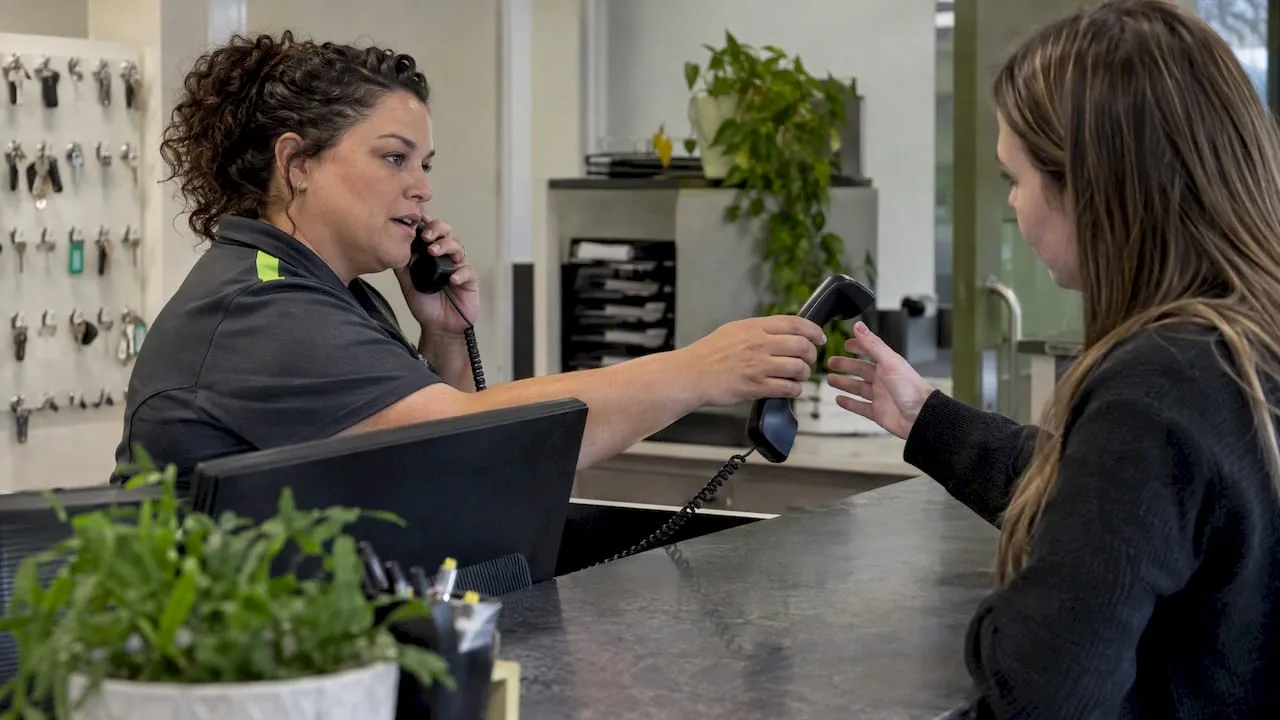
A lot of appointment scheduling for local service businesses still starts with a ringing phone, not a form. The strongest setups treat that call as the first step in the booking flow rather than something separate from it.
Here is how that typically plays out:
- An incoming call is answered automatically, and the caller's name, contact details, and reason for calling are captured in seconds.
- The system checks free and busy status on the calendar right then, either during the call or immediately after.
- Once a time is booked, a webhook fires to confirm the appointment and trigger an SMS reminder, which our own guide to reminder texts covers in more detail.
- The calendar stays current automatically, so no one has to cross-check a notepad against a shared calendar later.
Pro Tip: A phone call answered at 9 PM on a Saturday is still a lead. Businesses that can book that caller into Monday's calendar right then convert more of those calls into actual appointments than those relying on a voicemail and a callback the next day.
Once a booking is confirmed, the same webhook event that triggers a reminder can also kick off a review request after the appointment, which is the same mechanism behind automated review follow-ups.
Picking the route that fits your resources
The right integration choice usually comes down to four practical questions rather than a feature checklist.
- How much time and budget can you spend on setup? A native booking page takes minutes; a unified API integration takes real development time.
- Do you need multiple calendars or conferencing providers synced together? If yes, lean toward a unified API; if no, a native page or widget will do.
- Does the booking experience need to match your brand? An embedded widget on your own site beats a generic shared link for that.
- Can you maintain OAuth tokens and webhook uptime long term? Independent coverage of scheduling software trade-offs for small businesses notes that ongoing maintenance, not initial setup, is where most teams underestimate the work.
- Would an engineer or outside integrator do this faster and more reliably than a template tool? If your needs involve custom logic across several systems, that is usually the signal to bring in outside help.
Your launch checklist before going live
Run through this list once before opening your booking page to real clients, and revisit it occasionally as your setup grows.
- Confirm OAuth tokens connect successfully and refresh automatically without manual reauthorization.
- Verify free and busy queries return accurate, current availability, not cached or stale data.
- Check timezone handling end to end, and confirm all-day events block bookings when they should.
- Set buffers, minimum notice windows, reminders, and a working cancellation webhook.
- Monitor token expiry and API error rates on an ongoing basis, not just during setup.
What actually matters when you set this up
The feature most small businesses regret skipping is not a fancy calendar sync. It is a dependable confirmation message and a scheduling flow that fails gracefully when something goes wrong, rather than a flashy interface that breaks the moment two people try to book the same slot.
If you are setting this up yourself, spend your early testing time on token refresh and webhook delivery, not on cosmetics. Those two pieces are what quietly fail weeks after launch, usually right when your calendar fills up and you can least afford a silent gap.
— Serhii
How RingPort connects phone calls to a booked calendar
Most scheduling tools assume the client is already sitting at a booking page ready to click a time. RingPort starts a step earlier, at the phone call that happens before any of that.
RingPort is an AI receptionist built for local service businesses, answering calls around the clock, capturing the caller's details and intent, and checking your calendar for an open slot right then instead of leaving it for a callback. Once a time is confirmed, the booking syncs to your calendar, an SMS reminder goes out automatically, and the lead's information lands directly in your CRM so nothing falls through the cracks between the call and the appointment.
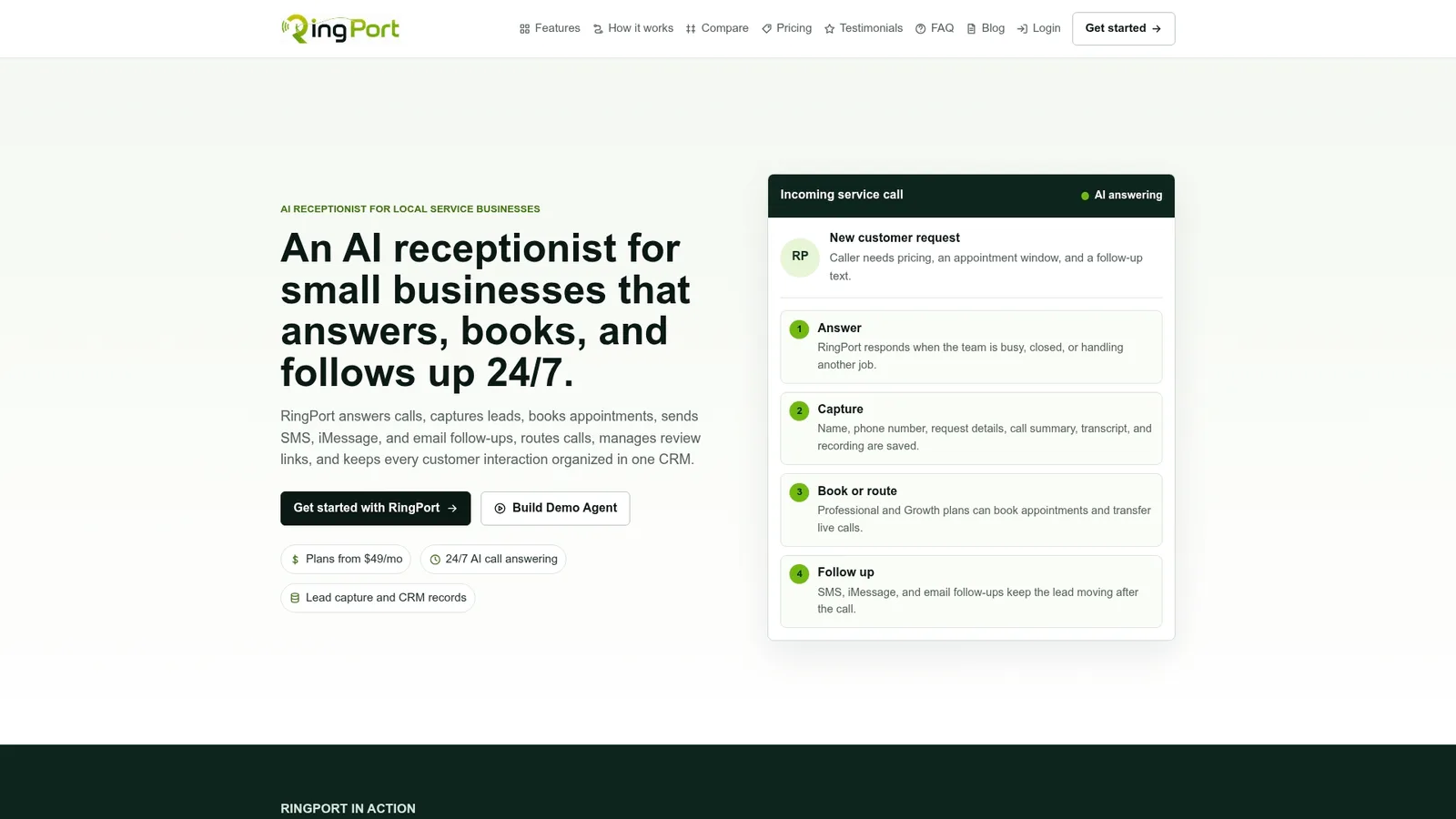
That combination matters most for businesses where every missed call is a missed booking: home services, salons, medical offices, and property management teams that cannot staff a phone around the clock on their own.
- 24/7 automated call answering, so no appointment request waits until business hours.
- Calendar booking synced in real time, with SMS and email follow-ups included.
- CRM handoff that keeps lead details and appointment history in one place.
RingPort plans run from Starter at $49 per month up through Professional and Growth, with pay-as-you-go add-ons available for extra call or messaging volume. You can see how the automated call flow works on the Fast Agent demo page or check plan details on the RingPort site.
Sources
- Unified
- Learn about appointment schedules in Google Calendar - Google Calendar Help
- Google Calendar API concepts — events & calendars
- Common Integration Patterns | Vennio API Docs
FAQ
What calendar tool can I use for scheduling appointments?
Google Calendar's built-in appointment schedules feature lets you create a shareable booking page that blocks times automatically on your calendar. For branded booking pages or multi-calendar needs, an embedded widget or unified API integration is usually the better fit.
Does Microsoft 365 have a calendar scheduling tool?
Yes, Microsoft 365 includes Bookings, a native scheduling tool that connects to your Outlook calendar and lets clients book appointments through a shared link. As with any native tool, it is worth confirming that all-day events and days off are marked busy, since practitioner reports describe this as a common setup gap.
What is the best calendar app for scheduling appointments?
There is no single best option. It depends on whether you need a quick native booking page, a branded widget for your website, or a unified API to sync multiple calendars and conferencing tools at once.
What is the best calendar app for sharing schedules?
Google Calendar and Microsoft 365's Outlook calendar both support shared calendars natively, making them a practical starting point for teams that need visibility into each other's availability. For businesses that also need phone intake tied to that shared calendar, a service like RingPort can route calls and bookings into the same system automatically.