How to Automate Google Reviews: Small Business Setup Guide
Discover how to automate Google reviews for your small business in just an hour. Streamline feedback with SMS, email, and AI responses!

How many customers are slipping away before you can answer?
Answer 4 quick questions and get a simple missed-call estimate for your business.
Answer with one tap. Contact details come after your result.
Here is the estimate.
Thanks. Your result was received.
You can automate Google reviews today using three components: Google Business Profile (GBP), an automation layer like Zapier, and optionally OpenAI's ChatGPT for drafting replies. The fastest path is a Zapier Zap that fires after a completed appointment or order, sends a personalized SMS or email with your GBP review link, and routes the response back to you. You can have a working pilot live within an hour.
Here are your three practical options at a glance:
- Lightweight DIY: Connect GBP to Zapier, trigger on a new order or booking, send an SMS or email invite, and use ChatGPT to draft replies to incoming reviews.
- Mid-level integrated: Use Ringport's review workflows, which tie call handling, appointment booking, and review solicitation into one system, so every completed service call can trigger a follow-up automatically.
- Enterprise scale: A dedicated reputation management platform with multi-location dashboards, hourly review syncing, and team escalation queues.
To get started right now, take these three steps: (1) log in to Google Business Profile and confirm your listing is verified, (2) copy your short review link from the "Get more reviews" section in GBP, and (3) build a test Zap in Zapier that sends that link to your own phone number as a simulated customer. That test takes about 20 minutes and proves the pipeline works before you send it to a single real customer.
Key Takeaways
Automating Google reviews works best when solicitation is tied to a real transaction trigger, replies are drafted by AI and reviewed by a human for anything below 4 stars, and your workflow is built to invite all customers consistently.
| Point | Details |
|---|---|
| Fastest starting path | Connect Google Business Profile and Zapier to a booking or CRM trigger; pilot with 10–20 customers in week one. |
| Automate solicitation and monitoring | Send timed SMS or email invites, monitor for new reviews, and draft replies automatically; keep human review for 1–2 star responses. |
| Stay compliant | Invite all customers, never offer incentives, and log every request sent to maintain a clean audit trail. |
| Measure five KPIs | Track review volume, average rating, response time, conversion rate, and negative escalation rate from day one. |
| Ringport for integrated workflows | Ringport ties call handling, appointment completion, and review solicitation into one system, removing the need for a separate automation stack. |
Table of Contents
- Which parts of the review process can you automate?
- A practical step-by-step setup you can run today
- Which tools fit your business size and workflow?
- Ready-to-use SMS, email, and ChatGPT templates
- Google's policy on review automation: what's allowed and what's not
- How to measure success and set realistic expectations
- Common automation failures and how to fix them fast
- Ringport makes review automation part of your daily workflow
- Sources
Which parts of the review process can you automate?
Not every step of the review process is a good candidate for automation. Getting this distinction right saves you from both missed opportunities and embarrassing missteps.
The tasks that automate well are the repetitive, time-sensitive ones:
- Review invite delivery: Sending a personalized SMS or email with your GBP link within 24–72 hours of a completed service.
- Follow-up reminders: A single, politely worded second message if the customer hasn't responded after 48 hours.
- New review monitoring: Alerts that notify you (via email, Slack, or SMS) the moment a new review appears on your GBP listing.
- Reply drafting: Using ChatGPT to generate a first-draft response that you review before posting, or posting automatically for straightforward 5-star reviews.
- Negative feedback routing: Detecting a low satisfaction signal and redirecting that customer to a private feedback form instead of the public Google page.
- Reporting: Weekly or monthly summaries of review volume, average rating, and response time, pulled automatically from your GBP data.
Automation handles the clock. Humans handle the complexity. When a customer describes a billing dispute, a safety concern, or a deeply personal complaint, a template reply is the wrong tool. Those situations need a real person who can read context, offer a genuine resolution, and represent your business with care.
Keep human judgment in the loop for: sensitive complaint resolution, any situation where a refund or conciliatory offer is appropriate, and responses that touch on legal or regulatory topics. A good rule of thumb is that if the reply requires you to know something specific about that customer's situation beyond what your CRM holds, a human should write it.
Pro Tip: Prioritize automation by impact and effort. Solicitation timing and follow-up reminders give you the highest return for the least setup work. Start there before building out monitoring dashboards or AI reply pipelines.
A practical step-by-step setup you can run today
This sequence follows a field-tested order. Skipping steps, especially the pilot phase, is the most common reason automations go live with broken field mappings or wrong timing.
-
Verify your Google Business Profile access. Log in at Business and confirm you have Owner or Manager access. Without this, Zapier cannot read or post to your listing.
-
Create your short review link. Inside GBP, go to "Ask for reviews" and copy the direct URL. Shorten it with a tool like Bitly so it fits cleanly in an SMS message.
-
Choose your trigger source. Your trigger is the event that kicks off the automation. Common options include a new row in a Google Sheet (if you log completed jobs manually), a completed appointment in a booking system, a closed ticket in your CRM, or a new order in your point-of-sale system.
-
Map your fields in Zapier. Connect your trigger app to Zapier and map the customer's name, phone number or email address, and a job or appointment ID. The job ID is useful for deduplication later.
-
Build your message template. Write the invite text (see the templates section below) and insert the mapped fields so each message is personalized. Add a delay step of 2–4 hours after the trigger fires, so the message arrives when the customer is likely done with their day, not mid-service.
-
Add a filter and branch. If you use a two-step satisfaction check (an initial 1–5 rating question), add a Zapier Filter step: if rating is 4 or 5, send the GBP review link; if rating is 1–3, route to a private feedback form or your internal inbox.
-
Set up monitoring and escalation. Use Zapier's GBP integration to watch for new reviews. When a 1- or 2-star review appears, trigger a Slack message or email to the owner or manager with the review text and a link to respond.
-
Run a pilot before going live. Send the automation to 10–20 real customers over 5–7 days. Review every message that went out, check that field mappings are correct, and confirm no customer received a duplicate request.
Here is a sample field mapping for a Zapier workflow triggered by a new appointment:
| Zapier Field | Source Field | Notes |
|---|---|---|
| Customer name | Booking system: first_name |
Used to personalize the message greeting |
| Phone number | Booking system: mobile_phone |
Must be E.164 format for SMS delivery |
| Email address | Booking system: email |
Fallback channel if SMS fails |
| Appointment ID | Booking system: booking_id |
Used to prevent duplicate requests |
| Service date | Booking system: completed_at |
Trigger delay calculated from this field |
The Zapier trigger-to-action flow looks like this: New Appointment Completed → Delay 3 hours → Send SMS with review link → Filter on satisfaction score → If score ≥ 4, send GBP link; else send private feedback form URL.
Zapier documents exactly how to wire GBP to ChatGPT for automated reply drafts, including the field mappings and the prompt structure to send review text to OpenAI and post the result back to GBP.
Which tools fit your business size and workflow?
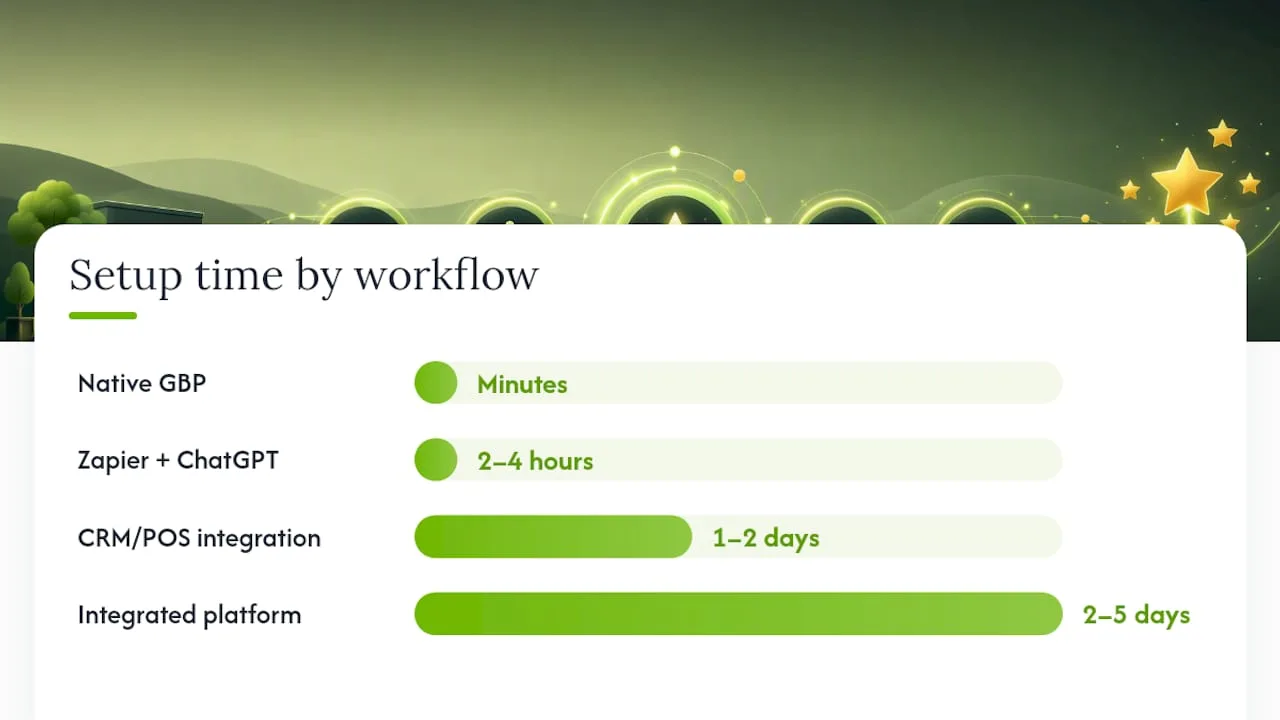
The right tool depends on how your business captures customer data and how much setup time you can invest. There are four practical workflow categories, each suited to a different stage of process maturity.

Native GBP features are the starting point. GBP gives you a review link, basic notification emails when new reviews arrive, and a reply interface. This is enough for a business that gets a handful of reviews per month and has time to respond manually. The gap is that GBP does not send automated invites or draft replies for you.
Zapier + ChatGPT is the DIY path for businesses that already use a booking system, CRM, or POS. You connect those tools to Zapier, build the trigger-and-message workflow described above, and add a ChatGPT step to draft replies. The cost is low (Zapier's paid plans start at a modest monthly fee, and OpenAI charges per token), but the setup requires a few hours and some comfort with no-code tools. This pattern works well for single-location businesses with a clear transaction trigger.
CRM or POS-triggered flows are the most reliable because they fire on confirmed transactions rather than manual data entry. When your CRM marks a job as complete or your POS closes a sale, the review request goes out automatically. Vendors across the industry consistently recommend CRM and booking system integrations as the most dependable triggers because they tie every request to a real, completed interaction, which reduces accidental or duplicate prompts.
Integrated reputation platforms add hourly GBP syncing, multi-location dashboards, team escalation queues, and AI-generated reply templates out of the box. These platforms make sense when you manage more than two or three locations, have a team that needs role-based access, or want a single dashboard for reviews across Google, Yelp, and Facebook. The trade-off is a higher monthly subscription and an onboarding process that takes a few days.
| Workflow Category | Best For | Setup Time | Key Limitation |
|---|---|---|---|
| Native GBP only | 1–5 reviews/month, manual follow-up | Minutes | No automated invites or reply drafts |
| Zapier + ChatGPT | Single location, existing CRM or booking tool | 2–4 hours | Requires no-code comfort; token costs at scale |
| CRM/POS integration | Transaction-heavy businesses, reliable triggers | 1–2 days | Depends on CRM/POS having a Zapier connector |
| Integrated platform | Multi-location, team workflows, cross-channel | 2–5 days | Higher cost; more features than small teams need |
Pro Tip: If you use a booking system for appointments, that system is almost certainly your best trigger source. A completed appointment is a confirmed interaction, which means your review request is always tied to a real customer experience.
Ringport fits squarely in the integrated category for service businesses. Because Ringport handles inbound calls, appointment booking, and CRM management in one platform, it can trigger a review invite the moment a call-based appointment is marked complete, without requiring a separate Zapier account or manual data export. That tight loop between call handling and review solicitation is what separates it from a DIY Zapier setup.
Ready-to-use SMS, email, and ChatGPT templates
Good templates are short, personal, and low-pressure. The goal is to make it easy for a satisfied customer to leave a review, not to pressure them into it.
SMS invite templates (send within 24–72 hours of service):
- "Hi [Name], thanks for choosing [Business Name] today. If you have a moment, we'd love to hear your feedback: [Review Link]. No pressure at all!"
- "Hey [Name], it was great working with you. A quick Google review helps us a lot: [Review Link]. Thanks!"
- "[Name], your appointment with [Business Name] is complete. We'd appreciate a quick review if you're happy with the service: [Review Link]."
Email invite template (subject: "How did we do, [Name]?"):
Hi [Name],
Thank you for trusting [Business Name] with your [service type]. We hope everything went smoothly.
If you have 60 seconds, leaving us a Google review makes a real difference for our small business: [Review Link].
We appreciate your time, and we're always here if you need anything.
[Your Name], [Business Name]
Review reply templates:
- 5-star review: "Thank you so much, [Reviewer Name]! We're really glad the [service] went well. We look forward to working with you again."
- 3–4 star review: "Thanks for the feedback, [Reviewer Name]. We're glad parts of the experience worked well, and we'd love to hear more about what we can improve. Please reach out to us directly at [contact info]."
- 1–2 star review: "We're sorry to hear this, [Reviewer Name]. This isn't the experience we aim to provide. Please contact us at [contact info] so we can make it right."
For 1- and 2-star reviews, treat the AI draft as a starting point only. A human should review and personalize it before posting.
ChatGPT prompt patterns:
- Concise reply draft: "Write a professional, friendly reply to this Google review for a [business type]. Keep it under 50 words. Review text: [paste review]. Do not offer discounts or make promises."
- Escalation summary: "Summarize this negative review in two sentences for an internal team handoff. Identify the core complaint and any specific detail that needs follow-up. Review: [paste review]."
- Localization: "Translate this review reply into [language]. Keep the tone warm and professional. Reply: [paste reply]."
Google's policy on review automation: what's allowed and what's not
Google's public guidelines on reviews are clear on one principle: reviews must reflect genuine customer experiences. Automation is allowed for solicitation, but the way you solicit matters.
What Google permits: Asking customers to leave a review after a real interaction, using automated tools to send those requests, and using software to draft and post replies. You can send review invites by SMS, email, or QR code, and you can automate the timing and delivery of those invites.
What Google prohibits: Offering incentives (discounts, gifts, or any reward) in exchange for a review, posting fake reviews, and review gating. Review gating is the practice of filtering customers before asking for a public review, specifically showing the Google link only to customers who already indicated they were happy. This selective approach is against Google's terms because it artificially skews your public rating.
The two-step satisfaction check described in the setup section above is a common pattern in the industry, and it appears in vendor documentation across the space. The key distinction is intent: routing a dissatisfied customer to a private feedback channel so you can resolve their issue is reasonable customer service. Blocking them from the public review page specifically to protect your star rating is gating. Design your workflow so that all customers receive the public review link, and use the private feedback path as an additional option, not a replacement.
Compliance checklist:
- All customers who complete a transaction receive a review invite, not just selected ones.
- No incentive (discount, gift card, or reward) is mentioned in the invite message.
- The invite message does not ask customers to rate you before deciding whether to send the Google link.
- You maintain a log of every review request sent (date, customer ID, channel).
- AI-drafted replies are reviewed before posting for any review that mentions a complaint, safety issue, or legal matter.
- Your automation has a deduplication check so no customer receives more than one or two requests per transaction.
Pro Tip: Keep a simple spreadsheet or CRM log of every review request you send. If Google ever flags your account, a clean audit trail showing consistent, non-selective solicitation is your best evidence of good-faith compliance.
Consumer discovery data from Statista's research on local business recommendation methods confirms that online reviews are among the top ways consumers find and evaluate local businesses, which makes your GBP rating a direct input to how often you appear in local search results. That visibility is worth protecting with a compliant, sustainable automation approach.
How to measure success and set realistic expectations
Tracking the right numbers tells you whether your automation is working or just running. These are the five KPIs worth monitoring from day one:
- New review volume: How many reviews you receive per week or month. This is your primary output metric.
- Average star rating: Track this weekly. A well-run solicitation campaign typically lifts average ratings because satisfied customers, who often stay quiet, are now being prompted.
- Request-to-review conversion rate: Divide the number of reviews received by the number of invites sent. SMS invitation response rates vary by industry and timing, with typical response rates considered healthy for the channel.
- Response time: How quickly you (or your automation) replies to new reviews. Faster responses signal to both Google and potential customers that you're attentive.
- Negative review escalation rate: The percentage of new reviews that are 1–2 stars and trigger your escalation workflow. If this number is rising, it's a signal to investigate service quality, not just the automation.
Realistic timeline for a small business pilot:
- Week 1: Send invites to 10–20 customers. Expect 1–4 reviews. Focus on confirming that field mappings are correct and messages are delivering.
- Month 1: With consistent sending, a small service business typically sees a meaningful increase in monthly review volume. Average rating may shift slightly as more satisfied customers respond.
- Quarter 1: By 90 days, you have enough data to A/B test two message templates, compare SMS versus email conversion rates, and decide whether to invest in a paid platform.
For A/B testing, change one variable at a time: the subject line, the send timing (same day versus next day), or the message length. Run each variant for at least two weeks before drawing conclusions, since weekly review volume for a small business can be noisy.
Cost scales predictably. A Zapier Starter plan covers basic automation needs, and OpenAI's API costs stay low at small volumes. An integrated platform subscription adds a fixed monthly cost but removes the setup and maintenance burden.
Common automation failures and how to fix them fast
Most automation problems fall into a short list of root causes. Here is a diagnostic checklist and the fix for each.
When your automation stops working, check permissions first. Google Business Profile access tokens expire, and Zapier's GBP connection needs to be re-authorized periodically. This is the single most common cause of a suddenly silent review pipeline.
Permission errors on GBP: Re-authorize the GBP connection in Zapier by going to your Zap's trigger step, clicking "Reconnect," and signing in with the Google account that has Owner or Manager access to the listing. If you use a shared team login, confirm that account hasn't had its access revoked.
Wrong field mappings: If customers are receiving messages addressed to "Hi undefined" or with a broken review link, open the Zap's field mapping and run a test with a real sample record. Check that the phone number field is in E.164 format (+1XXXXXXXXXX for US numbers) and that the review link is the full, shortened URL before you apply a shortener step.
SMS or email deliverability failures: Check your sending provider's logs for bounce or failure codes. Common causes include invalid phone numbers, carrier filtering of messages that contain URLs (add your business name to the message to reduce this), and email addresses with typos in the source data.
Duplicate review requests: Add a deduplication step in Zapier using the appointment or order ID. Store sent IDs in a Google Sheet or Airtable table and add a "Search" step before the send step; if the ID already exists, halt the Zap.
Webhook timeouts: If your Zap uses a webhook to receive data from a custom system, and the Zap is failing silently, check that the webhook payload is arriving within Zapier's timeout window. Add a Zapier "Delay" step after the webhook trigger to give the source system time to complete its write before the Zap reads the data.
Pro Tip: Run a test customer journey at least once a month. Use a real phone number and email address you control, trigger the automation manually, and confirm every step fires correctly. Catching a broken token or a changed field name early prevents weeks of missed review opportunities.
To validate each step of your flow, simulate these three scenarios: (1) a happy customer who completes the service and receives the invite, (2) a customer who receives the invite but does not click (confirm the follow-up fires correctly), and (3) a customer who leaves a 1-star review (confirm the escalation alert reaches the right person).
What one small-business operator learned after going live
Running a service business without a review follow-up system means relying on customers to remember you on their own, and most of them won't. The problem isn't that they're unhappy; it's that leaving a review simply isn't on their to-do list. After setting up a Zapier workflow tied to a booking system, with a 3-hour post-appointment delay and a short, friendly SMS, the difference was immediate: reviews started arriving the same week, from customers who had been happy for months but never thought to say so publicly.
The part that surprised most was how much easier the reply side became. Using a Ringport-style integrated workflow, where call completion, appointment status, and review monitoring all live in one place, meant no more toggling between five tabs to figure out which customer left which review. The escalation alert for low-star reviews meant nothing slipped through unnoticed. The whole system took about a day to set up and maybe 15 minutes a week to manage after that.
Ringport makes review automation part of your daily workflow
If the DIY Zapier path sounds like more setup than you want to manage, Ringport gives you the same automation in a system that already handles your calls and appointments.
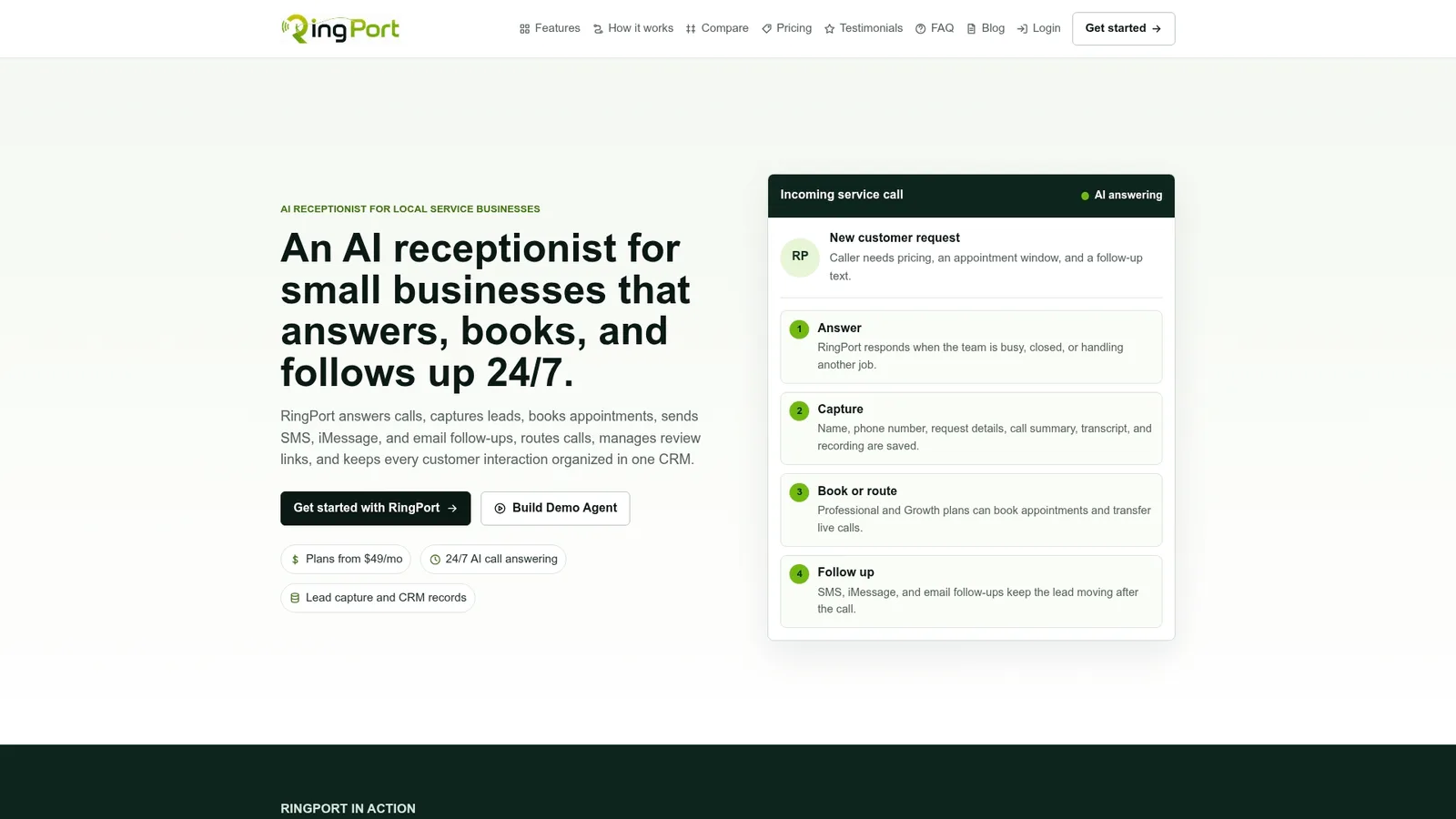
Ringport is built for local service businesses that want review solicitation to happen automatically, without building and maintaining a separate Zap. When a call-based appointment is completed, Ringport can trigger a personalized SMS or email review invite, route any low-satisfaction signals to a private inbox, and surface AI-drafted reply suggestions for new reviews, all from the same dashboard where you manage calls and bookings. There's no separate automation account to authorize, no field mapping to debug, and no token to re-authorize every few months. For a solo owner or a small team that doesn't have hours to spend on no-code setup, that tight integration is the practical difference between a review system that runs and one that sits half-finished. Start your trial at Ringport and have your first automated review invite live within your first day.
Sources
The sources below cover the specific tools and data referenced throughout this guide.
- Local business recommendation methods | Statista