Small Businesses: Google Business Profile Call Tracking with GA4 Checks
Small business call tracking after Google removed call history. Set up GA4 DebugView checks, carry lead ID, validate calls and log to your CRM.

How many customers are slipping away before you can answer?
Answer 4 quick questions and get a simple missed-call estimate for your business.
Answer with one tap. Contact details come after your result.
Here is the estimate.
Thanks. Your result was received.
You can still track calls from your Google Business Profile, but not the way you used to. Google pulled call history from the profile itself, so the fix now lives outside GBP: a call-tracking number, a GA4 event tied to UTM parameters, Google Ads call conversions if your accounts are linked, or the Business Calls API for locations you manage. None of these methods is perfect on its own, but any one of them, set up correctly, closes most of the attribution gap.
TL;DR:
- Using a dedicated call-tracking number or GA4 UTM events can recover most call attribution gaps caused by Google removing call logs from Business Profiles.
- Dynamic number insertion is suitable for multi-campaign setups, while static numbers work best for single-location businesses wanting simple attribution.
- Capturing UTM parameters before redirecting visitors and pairing them with a lead_id ensures better matching of calls with initial online interactions.
- Google Ads call conversion tracking only reports calls from paid campaigns longer than a set duration, not organic profile calls.
- Combining call-tracking systems with automated call handling improves lead follow-up and minimizes missed opportunities.
Table of Contents
- What Changed in Google Business Profile and Why It Matters
- Method 1: Call-Tracking Numbers and Number Swapping
- Method 2: UTM and GA4 Event Capture for Click-to-Call
- How Google Ads and the Business Calls API Fit In
- Tying It All Together: Reconciling Calls with Your CRM
- Your Setup Checklist for Business Profile Call Tracking
- Why Attribution and Automation Have to Work Together
- Turn Tracked Calls Into Booked Appointments With RingPort
- Where This Information Comes From
- Sources
- FAQ
What Changed in Google Business Profile and Why It Matters
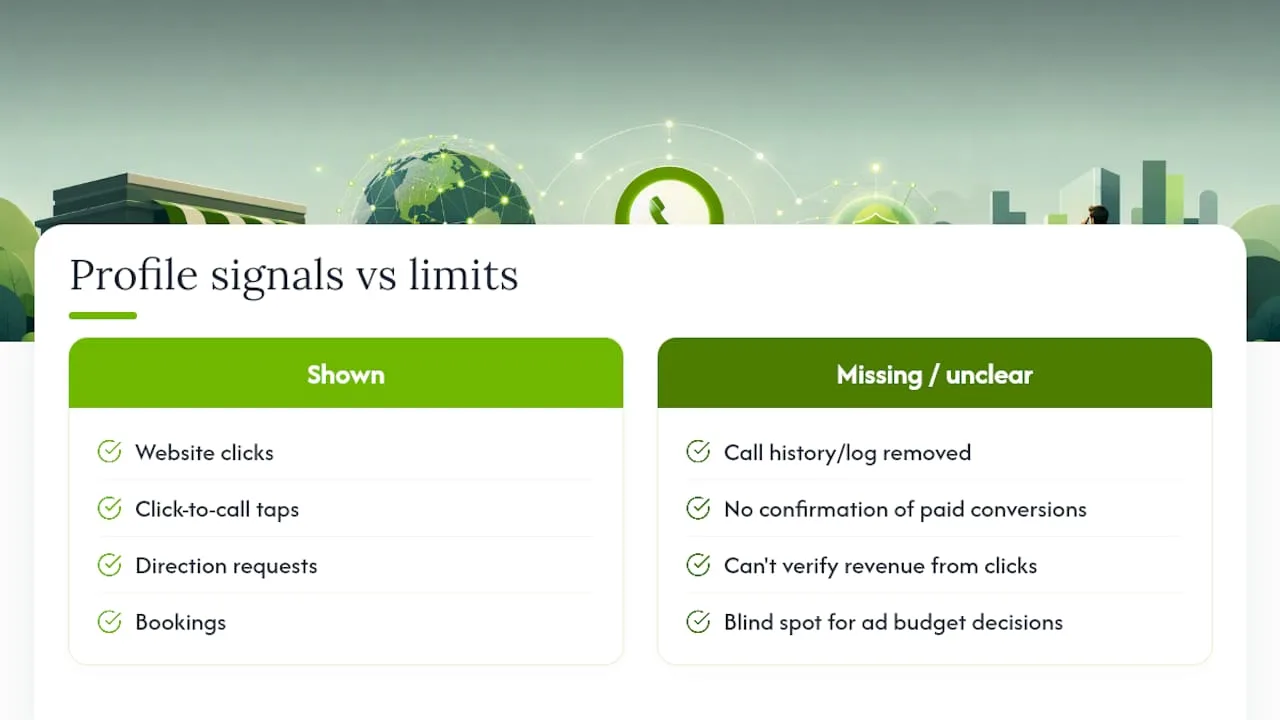
Google confirmed that chat and call history features disappeared from Business Profiles, and call history stopped showing after that date. Calls still come through the profile. You just can't see the log anymore.
The profile still shows other signals: website clicks, click-to-call taps, direction requests, and bookings. Each one tells you someone engaged, but none of them confirm whether that click turned into a paying customer. That's a meaningful blind spot when you're deciding where to put next month's ad budget. Without call data, you're left guessing whether your Business Profile actually drives revenue or just drives curiosity clicks that go nowhere.
Method 1: Call-Tracking Numbers and Number Swapping
A dedicated tracking number is the most direct way to see which calls came from your Business Profile. You place a tracking number in the primary phone field, then list your real business number as a secondary contact. That said, treat this carefully: Google cares about NAP consistency (name, address, phone) across the web, so swapping numbers without matching your citations elsewhere can create ranking confusion if not handled deliberately.
Two flavors exist here. Static tracking numbers work well for single-location businesses that just want to know "did this call come from GBP?" Dynamic number insertion (DNI) swaps in a different number depending on the traffic source, which suits businesses running multiple campaigns who need to separate GBP from paid search or referral traffic.
To set it up:
- Provision a tracking number through your call-tracking provider.
- Map that number to a campaign source in your dashboard.
- Add it to your Business Profile's primary phone field, keeping your original number listed as a backup.
- Route the call event, with a unique lead_id, to your CRM through a webhook.
- Place a test call to confirm the number rings through and the lead_id lands correctly.
Pro Tip: Test caller ID display before you go live. Some tracking numbers show up as "Unknown" or "Spam Risk" on certain carriers, which can tank your answer rate before attribution even matters.
Method 2: UTM and GA4 Event Capture for Click-to-Call
When someone taps your website link from Google Business Profile, the UTM parameters you attached don't always survive the trip. Mobile browsers, in-app viewers, and redirects can strip query strings before the page even loads, which means your analytics tool never learns where the visitor came from. That's why an intermediate landing page matters. Build one page whose only job is to catch the UTM parameters and hold onto them.
Here's the sequence:
- Send Business Profile clicks to a landing page built to preserve UTM parameters on arrival.
- Store those parameters in sessionStorage immediately, before any redirect happens.
- When the visitor taps your phone number, fire a
phone_clickevent in GA4 that carries the saved UTM data plus a lead_id. - Pass that same lead_id to your CRM so the call, once it happens, can be matched back to the original session.
Storing UTM data in sessionStorage before firing the phone_click event is what keeps attribution intact even if the visitor closes the tab and calls later from their dialer app.
Validate the setup in GA4's DebugView. Confirm the phone_click event fires with the right parameter names, then check that the lead_id shows up in your CRM against the matching call record. If you need to know the caller actually dialed from their phone (not just tapped a link), pair this method with a tracking number. UTM capture alone tells you about the click. It doesn't always confirm the call happened.
How Google Ads and the Business Calls API Fit In
If your Google Ads account is linked to your Business Profile and call reporting is turned on, eligible calls get counted under "Calls from ads" as a conversion action. That only applies to calls tied to paid campaigns, not organic profile traffic.
A few things to check before you lean on this data:
- Confirm call reporting is enabled at the account level, not just the campaign level.
- Know that only calls lasting longer than a certain duration threshold count as conversions.
- Verify your conversion settings before turning on call-based smart bidding, since adding call conversions changes how the algorithm allocates spend.
- If you manage the location directly, the Business Calls API can return missed and answered call counts broken down by hour and day of week.
That API requires the business.manage scope and the right location role, and data typically covers a rolling window of up to six months in aggregated form. It's useful for spotting patterns, like which hours you're missing the most calls, but it won't hand you individual caller records.
Tying It All Together: Reconciling Calls with Your CRM
None of these methods work in isolation. The connective tissue is the lead_id you assign the moment someone first interacts with your listing, whether that's a click, a form fill, or a tap on your tracking number.
- Generate the lead_id at first touch and pass it into every GA4 event and every call-tracking webhook that follows.
- Send webhooks carrying UTM parameters and the lead_id straight into your CRM so calls reconcile automatically instead of by hand.
- Build your reporting by layering GA4 event data, call-tracking logs, and CRM outcomes, and pick one system as your source of truth so numbers don't conflict.
- Watch for the most common mistake: losing the lead_id when a visitor switches devices, which orphans the call record. A short-lived cookie paired with server-side storage usually fixes it.
Pro Tip: If two systems disagree on lead count, trust your CRM outcome data over raw event counts. Events tell you about clicks; your CRM tells you about actual conversations.
Your Setup Checklist for Business Profile Call Tracking
Getting call tracking running doesn't require a developer team. Work through this in order:
- Decide which method fits your business: a tracking number, GA4 with UTM capture, or both together for full coverage.
- If using a number, provision it, update your Business Profile's phone field while keeping NAP consistent everywhere else, and connect the webhook to your CRM.
- If using GA4, build the UTM-preserving landing page, implement the
phone_clickevent with a lead_id, and confirm it fires correctly in DebugView. - Run both systems for a couple of weeks, then compare call counts against your CRM to catch any gaps before you scale the setup.
Small adjustments, like fixing a dropped UTM parameter or a mismatched lead_id, tend to surface in that first two weeks. Fix them early and the rest of your reporting holds up.
Why Attribution and Automation Have to Work Together
Owning your call attribution is how you defend ad spend and figure out which channel actually deserves more budget. But data alone doesn't answer a phone. Pairing capture with automated call handling cuts down on missed leads and speeds up follow-up, which matters more than a perfect dashboard. Start with the simplest setup that gives you real numbers, then add dynamic number insertion or webhooks once you're ready to scale.
— Serhii
Turn Tracked Calls Into Booked Appointments With RingPort
Tracking where a call came from only helps if someone actually answers it. There are systems built for local service businesses that capture source data and answer calls at any time, day or night.
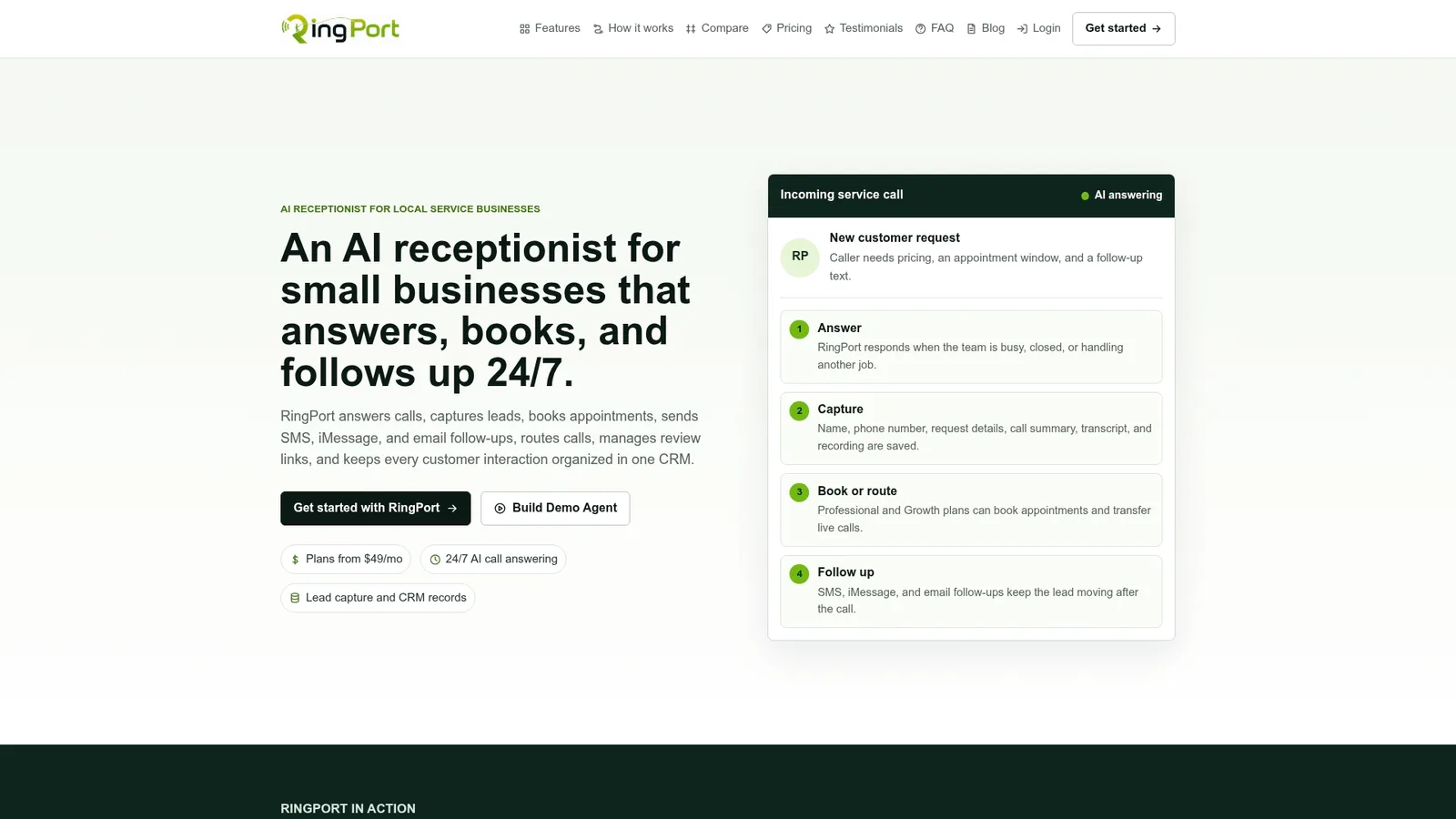
Automated answering, smart call routing, and CRM integrations can carry your lead_id and UTM parameters through to the record that matters, helping preserve attribution when a call comes in. Instead of a missed call turning into a missed job, RingPort routes it, books it, or logs it automatically. If you're already tracking calls and want to make sure fewer of them slip through, look at the Starter, Professional, and Growth plans or check out RingPort Fast Agent for a closer look at automated call handling in action.
Where This Information Comes From
The steps in this guide draw on Google's own documentation for Business Profile call history removal, Google Ads call conversion tracking, and the Business Calls API reference. For implementation detail on UTM and GA4 setup, see this Google Business Profile UTM and GA4 guide, and for a technical breakdown of ad-driven versus organic call setup, see this call tracking setup guide.
FAQ
Can a Google Voice Call Be Traced?
A Google Voice call can be traced to the extent that Google Voice keeps its own call logs for the account holder, but it doesn't connect that data to your Business Profile or marketing campaigns. If you need marketing attribution, you still need a dedicated tracking number or GA4 event capture layered on top.
How Do I Track Calls Coming From My Business Profile?
Use a tracking number in your GBP phone field, a phone_click GA4 event tied to UTM parameters, or Google Ads call conversions if your accounts are linked. Businesses managing their own locations can also pull missed and answered call counts through the Business Calls API.
How Can I Check If Call Tracking Is Actually Working?
Place a test call through your tracking number and confirm it shows up correctly in your CRM with a matching lead_id. For GA4 setups, open DebugView, trigger the phone_click event, and verify the UTM parameters and lead_id appear exactly as expected.
How Do I Stop Unwanted Calls About My Business Listing?
Unwanted calls tied to your listing usually come from directory scrapers or outdated citations rather than the profile itself, so start by auditing where your number appears online. Keeping your NAP details consistent across your Business Profile and other directories reduces the confusion that generates spam or misdirected calls.
Does RingPort Help With Call Tracking From Google Business Profile?
Routing and CRM integrations can carry lead_id and UTM data through to your records, so calls captured through a tracking number or GA4 setup don't lose their source information once answered or routed. Current pricing for the Starter, Professional, and Growth plans is available on RingPort's site.